 DarkHorse IT
5 Built-In Windows Tools You Should Be Using (But Probably Aren’t)
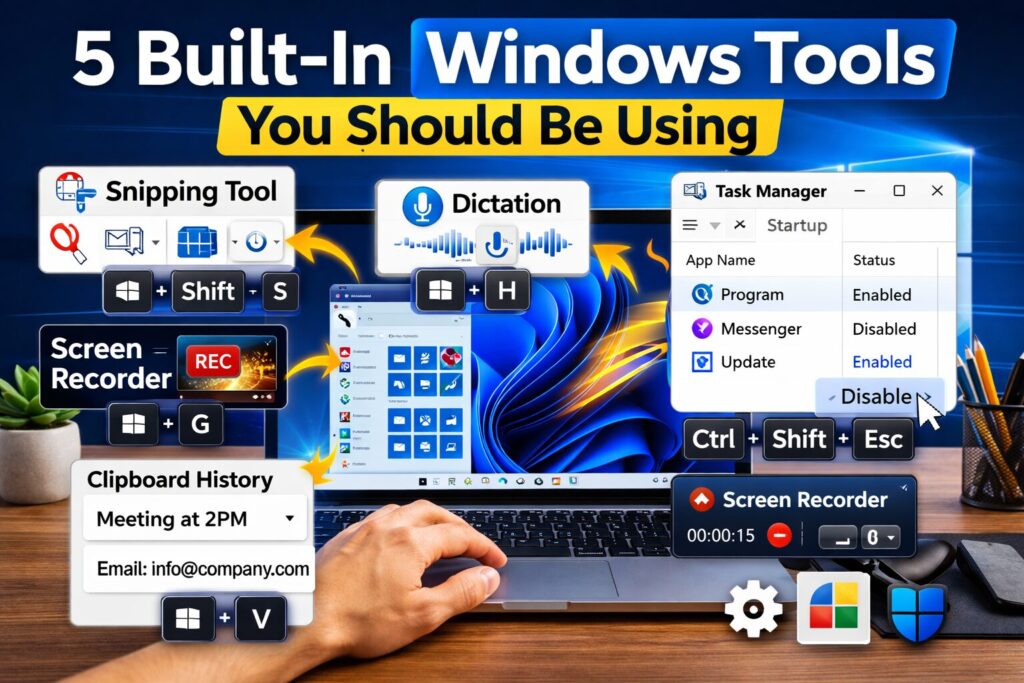
This week on our Thursday 7:40am KFGO tech segment, we talked about something simple but powerful. Your Windows computer already has some incredible tools built in. You do not need to download extra software. You do not need to pay for anything. You just need to know they exist.
If you use a Windows PC at home or for business, these tools can save you time, reduce frustration, and even improve performance.
Let’s walk through five built-in features you should start using today.
1. Snipping Tool – Take Better Screenshots in Seconds
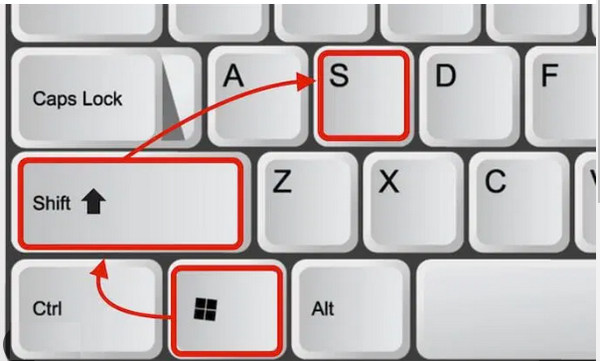
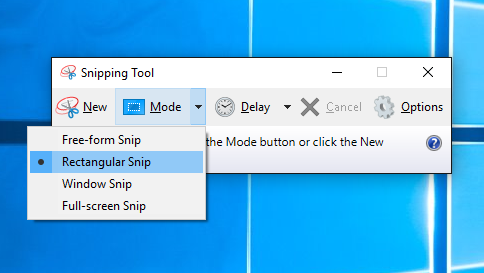
Opens Snipping tool, where you can choose different options to capture what is on your screen.
2. Game Bar Screen Recorder – Record Your Screen Instantly

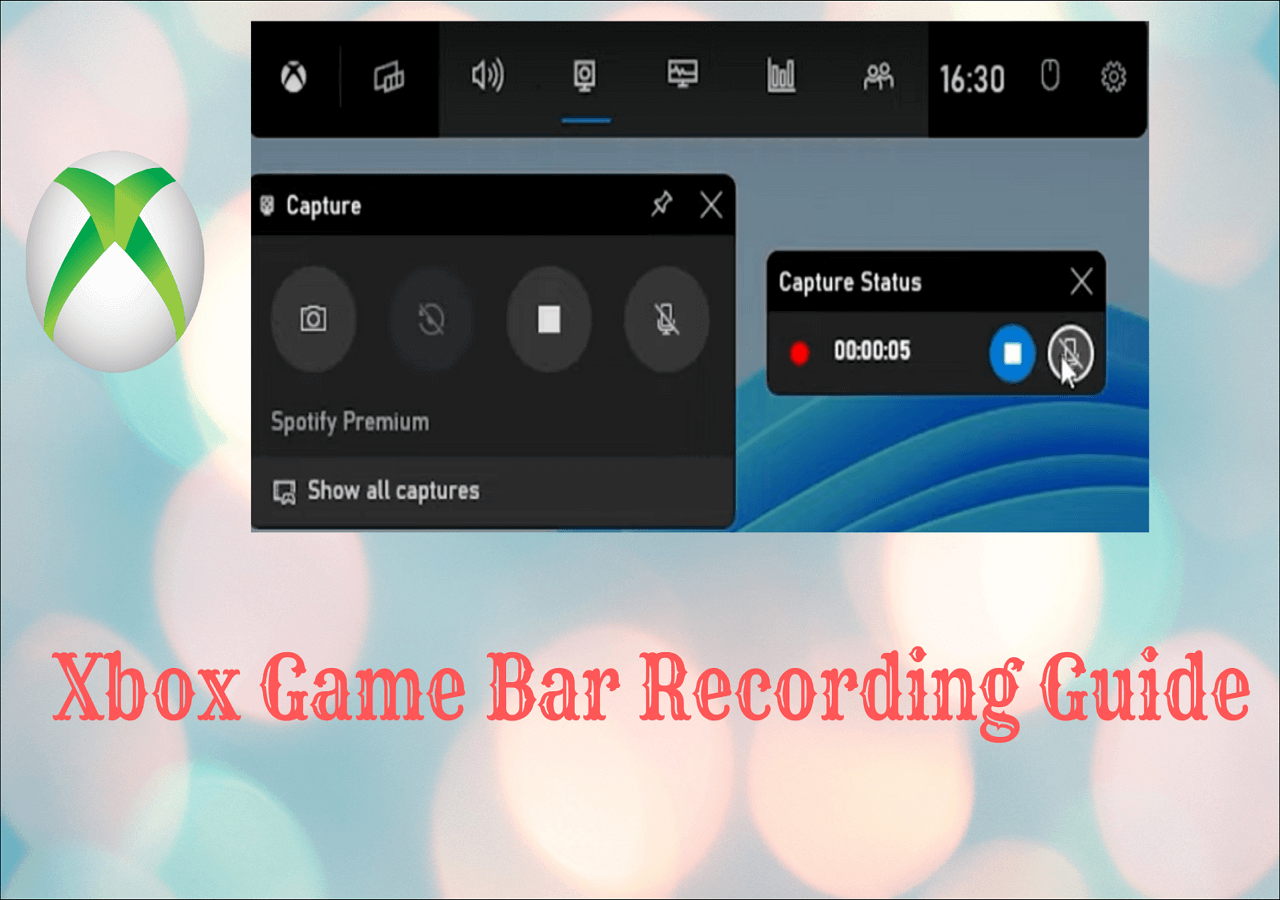
Even if you are not a gamer, this tool is incredibly useful.
Press:
Windows Key + G
The Game Bar overlay appears.
Click the record button or press:
Windows Key + Alt + R
Now your screen is recording.
This is perfect for:
- Showing someone how to do something
- Recording a software issue
- Creating quick training videos
No extra software required.
3. Dictation – Let Windows Type for You
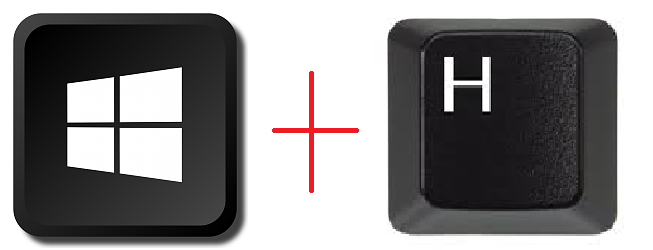
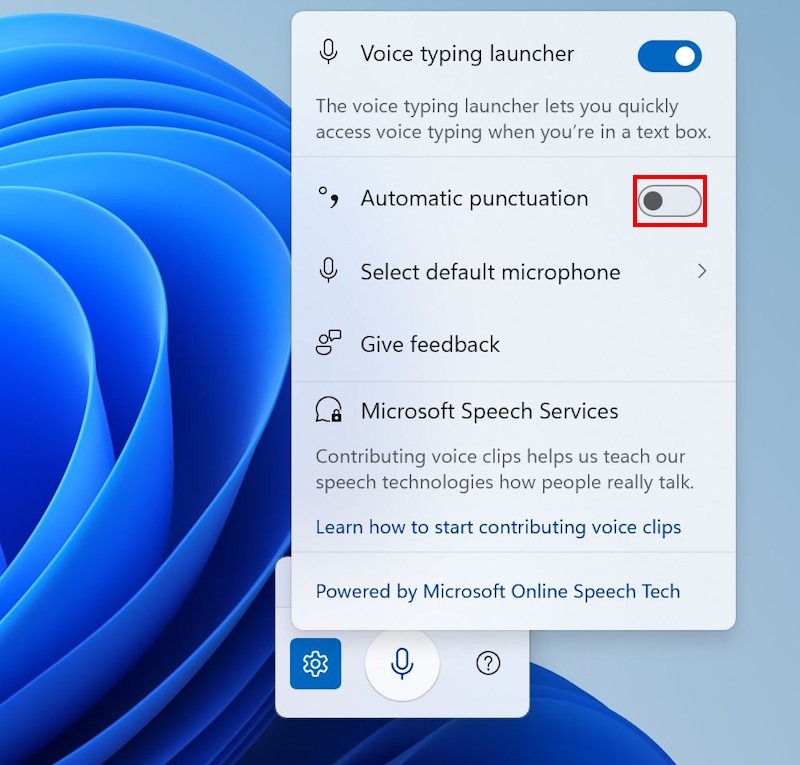
If you are not using voice typing yet, you are missing out.
Press:
Windows Key + H
A small microphone bar appears. Start speaking, and Windows types for you.
This works in:
- Word
- Web browsers
- Most text fields
Great for:
- Writing faster
- Taking notes
- Anyone who prefers speaking over typing
It is surprisingly accurate.
4. Task Manager – Control What Starts When Your Computer Boots
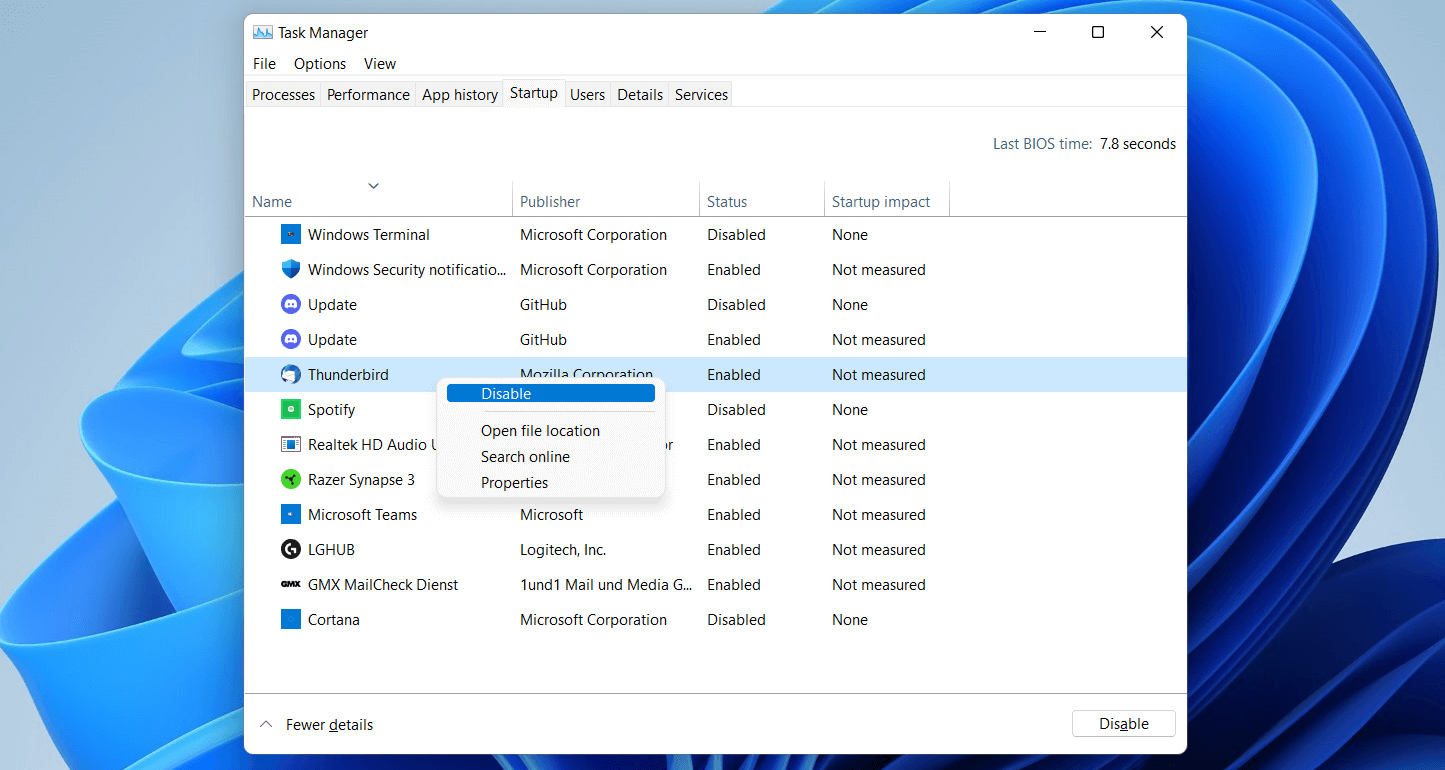
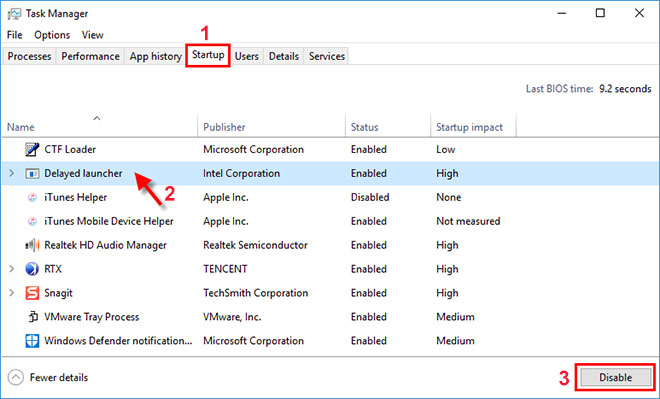
If your computer feels slow when it starts up, this is one of the first places to check.
Press:
Ctrl + Shift + Esc
That opens Task Manager.
Now click the Startup tab.
You will see a list of programs that launch when your computer turns on.
How to Audit Your Startup Programs
- Open Task Manager
- Click the Startup tab
- Look at the “Startup impact” column
- Right-click programs you do not need starting automatically
- Click Disable
Be cautious not to disable:
- Security software
- Microsoft system processes
If you are unsure, this is where calling a professional is wise.
Cleaning up startup programs can noticeably improve boot time and overall performance.
5. Clipboard History – Stop Losing What You Copied
Most people think copy and paste only remembers one thing.
Not anymore.
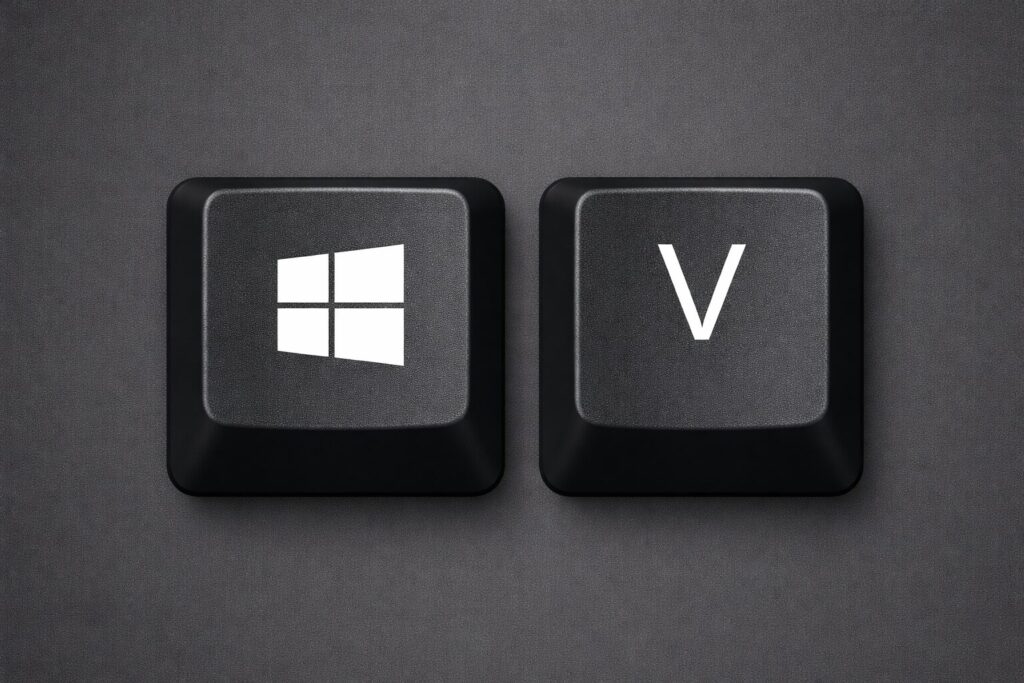
Press:
Windows Key + V
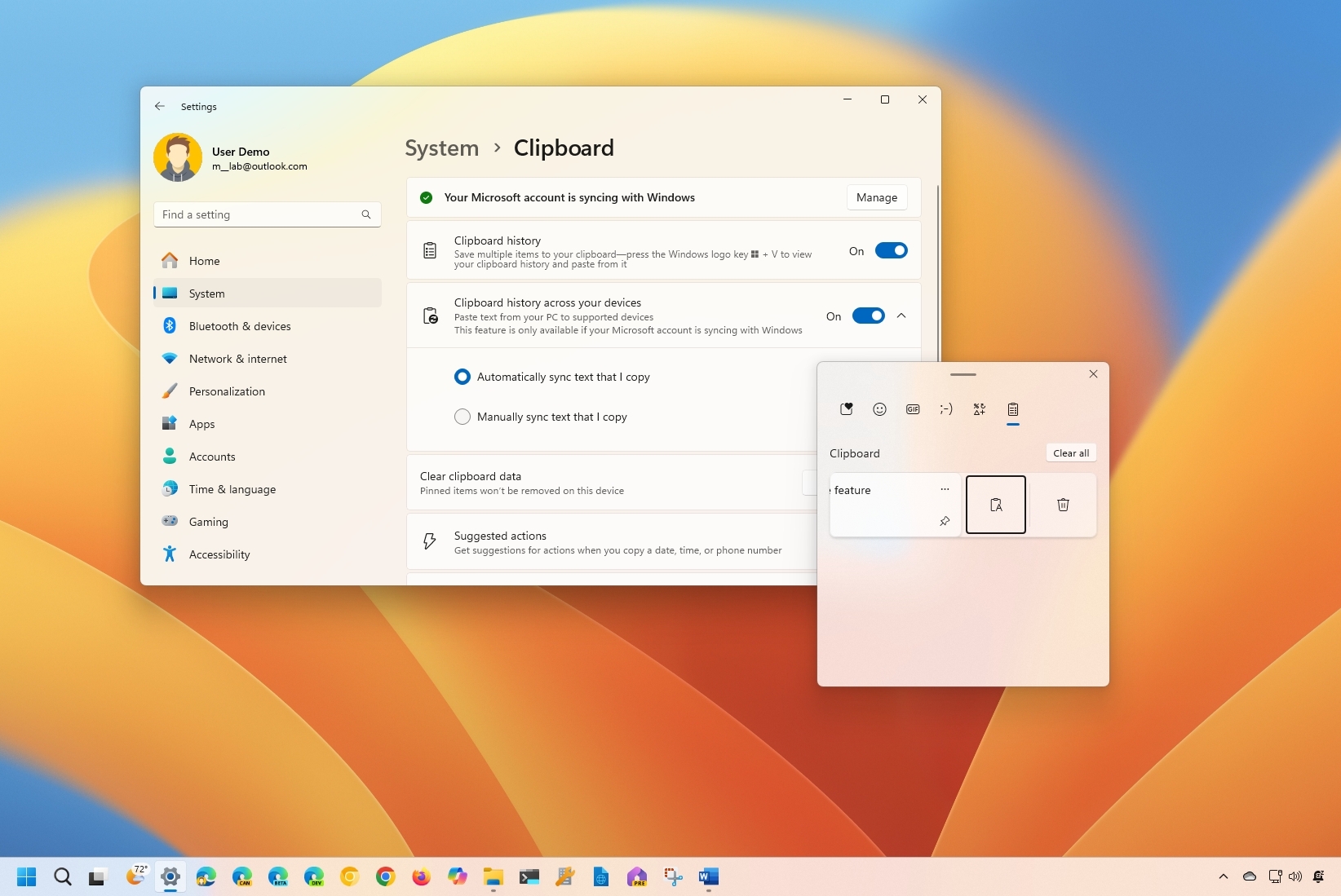
You will see a history of recently copied items.
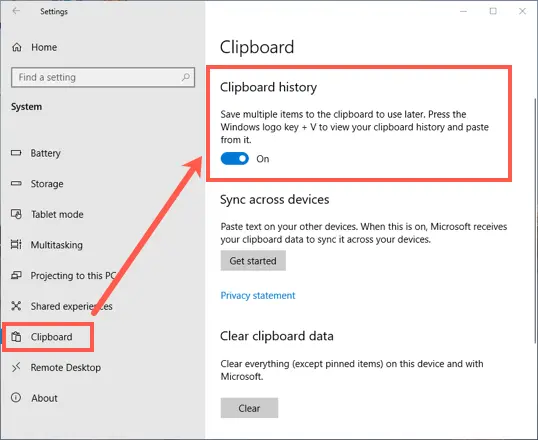
If it is not enabled:
- Press Windows Key + V
- Click “Turn on”
Now you can:
- Copy multiple items
- Reuse things you copied earlier
- Pin important copied text
This is a huge productivity boost, especially for business users.
Quick Takeaways
- Windows already includes powerful tools
- You do not always need third-party software
- Small shortcuts can save serious time
- Cleaning up startup apps improves performance
- Screen recording and dictation can simplify communication
Final Thoughts
Most people only use a small fraction of what their computer can do. Learning just a few built-in tools can make your day easier and your system run better.
If you are unsure about disabling startup programs, optimizing your system, or securing your device, we are here to help.
At DarkHorse IT, we support both residential and business clients with practical, security-first IT solutions.
Visit us at:
https://darkhorseit.com
Catch the weekly blog tied to our Thursday 7:40am KFGO segment:
https://kfgo.darkhorseit.com
Liked this post? Follow this blog to get more.