 DarkHorse IT
Windows Power User Tips: Keyboard Shortcuts That Save You Time
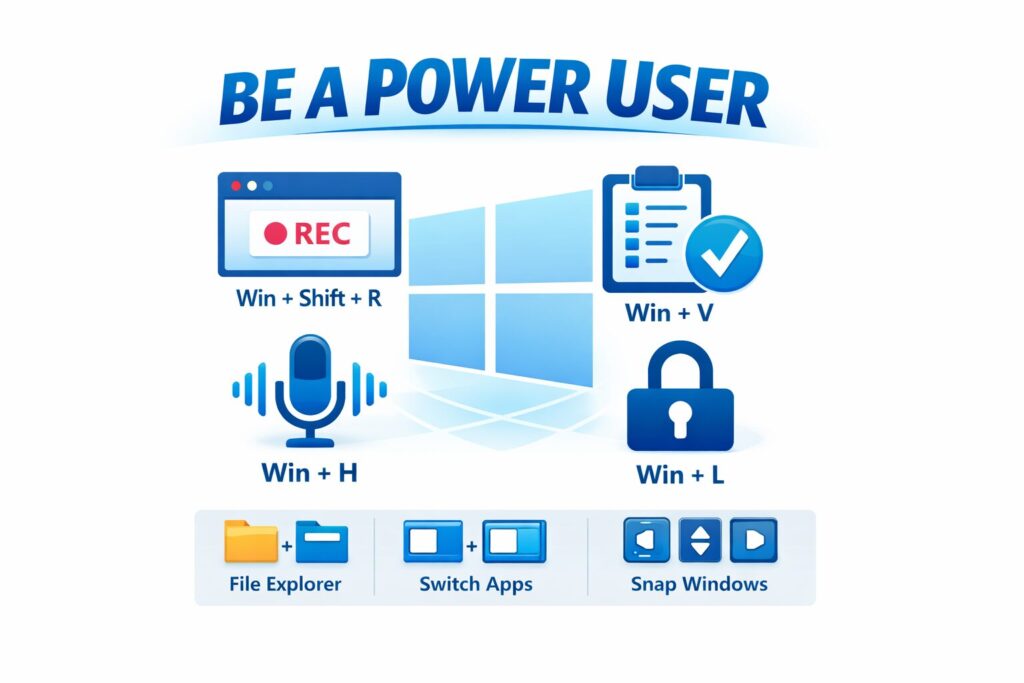
Every Thursday morning on KFGO, we talk about simple ways to make technology work better for you. This week’s segment focused on Windows power user tips, specifically keyboard shortcuts that can save you time, clicks, and frustration.
Most people use Windows with a mouse and menus, and that’s exactly what made Windows popular in the first place. But before graphical interfaces existed, everything was done through typed commands. Keyboard shortcuts live right in the middle of those two worlds. You still get the comfort of a visual interface, but with the speed of commands.
Once you start using a few of these regularly, Windows feels faster and more intentional.
Built-In Windows Shortcuts You Should Know
These shortcuts are already built into Windows. No extra software required.
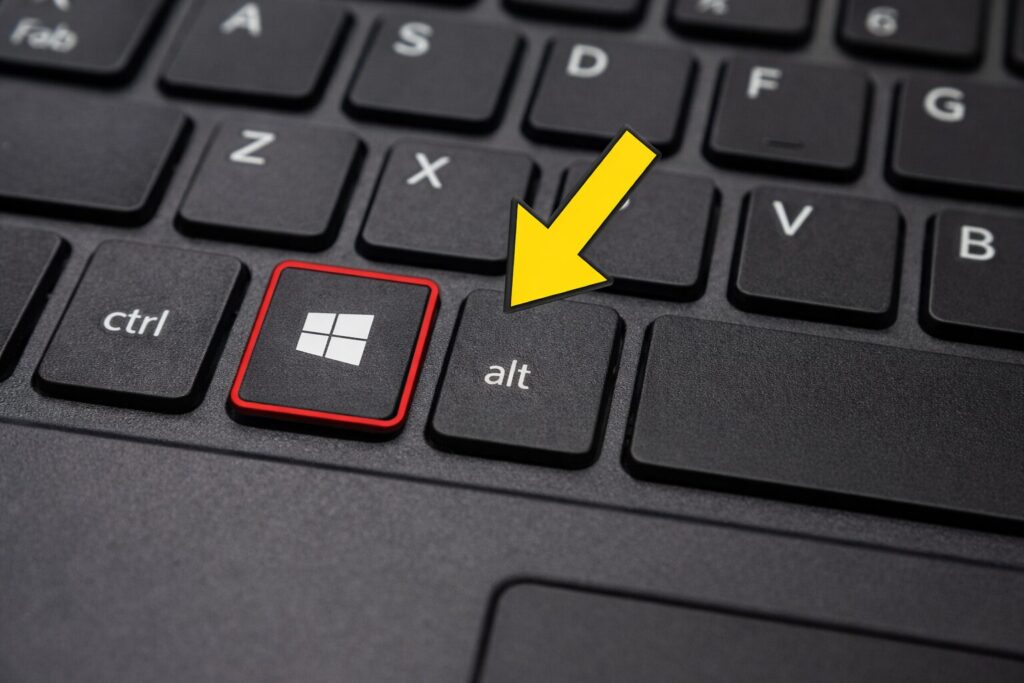
Most of these commands use the Windows Key, sorry Mac users.
Screen Recording and Screenshots
Windows + Shift + R
Opens the screen recording tool. You can record your entire screen or just a selected area, along with audio. This is perfect for tutorials, showing someone how to do something, or capturing an issue for tech support.
Windows + Shift + S
Opens the snipping tool for screenshots. You can grab a portion of the screen, a window, or the full display. The image is copied directly to your clipboard.
Dictation and Voice Typing
Windows + H
Activates voice typing. You can speak into almost any text field and Windows will transcribe your words. This works great for emails, notes, and even web forms.
Security and Quick Access
Windows + L
Locks your computer instantly. If you ever step away from your desk, this is one of the simplest and most important shortcuts to know.
Ctrl + Shift + Esc
Opens Task Manager directly. Useful when something freezes or you need to see what’s using system resources.
Clipboard Power
Windows + V
Shows your clipboard history. Instead of pasting only the last thing you copied, you can scroll through previous items. This is a huge time saver when copying multiple pieces of text or images.
The first time you use it, Windows will ask you to turn clipboard history on.
Everyday Power User Shortcuts
These are the ones many IT pros use constantly.
Windows + E
Opens File Explorer instantly.
Windows + D
Shows or hides the desktop.
Alt + Tab
Switches between open applications.
Windows + Arrow Keys
Snaps windows to the sides or corners of the screen. Great for multitasking on one monitor.
Ctrl + C / Ctrl + V / Ctrl + X
Copy, paste, and cut. Simple, but still essential.
Ctrl + Z
Undo your last action. This saves people more often than they realize.
Why This Matters
You don’t need to memorize every shortcut. Just pick two or three that solve everyday annoyances and start there. Over time, those small changes add up to less clicking, less digging through menus, and a smoother experience overall.
This is exactly the kind of practical tech we like to share on KFGO. Tools that already exist, but most people were never shown how to use.
Need Help Getting More Out of Your Computer?
At DarkHorse IT, we help both business and residential clients work smarter with the technology they already own. Whether it’s Windows tips, security questions, or fixing something that just isn’t working right, we’re here to help.
You can find this weekly blog and past KFGO segments at
https://kfgo.darkhorseit.com
Learn more about our services or contact us at
https://darkhorseit.com
You can also catch the show live on Facebook every Thursday morning at 7:40am
https://www.facebook.com/darkhorseit
Liked this post? Follow this blog to get more.