Let me tell you about the most underrated security tool that exists.
It’s free. It takes two minutes to set up. It works on every device in your house — your laptop, your phone, your kids’ tablets, your smart TV. And it blocks more threats than most antivirus software you’re paying $60 a year for.
It’s called DNS filtering. And I’d bet money you’ve never heard of it.
What DNS actually is (30-second version)
Every time you type a website address — like google.com or yourbank.com — your device asks a DNS server to translate that name into an IP address. Think of it like a phone book: you look up the name, the phone book gives you the number, your device calls that number.
By default, your devices use your internet provider’s DNS server. Midco, Sparklight, whoever you’ve got. Their DNS server just answers the question — it doesn’t care if the website you’re going to is legit or malicious.
That’s the problem.
What DNS filtering does differently
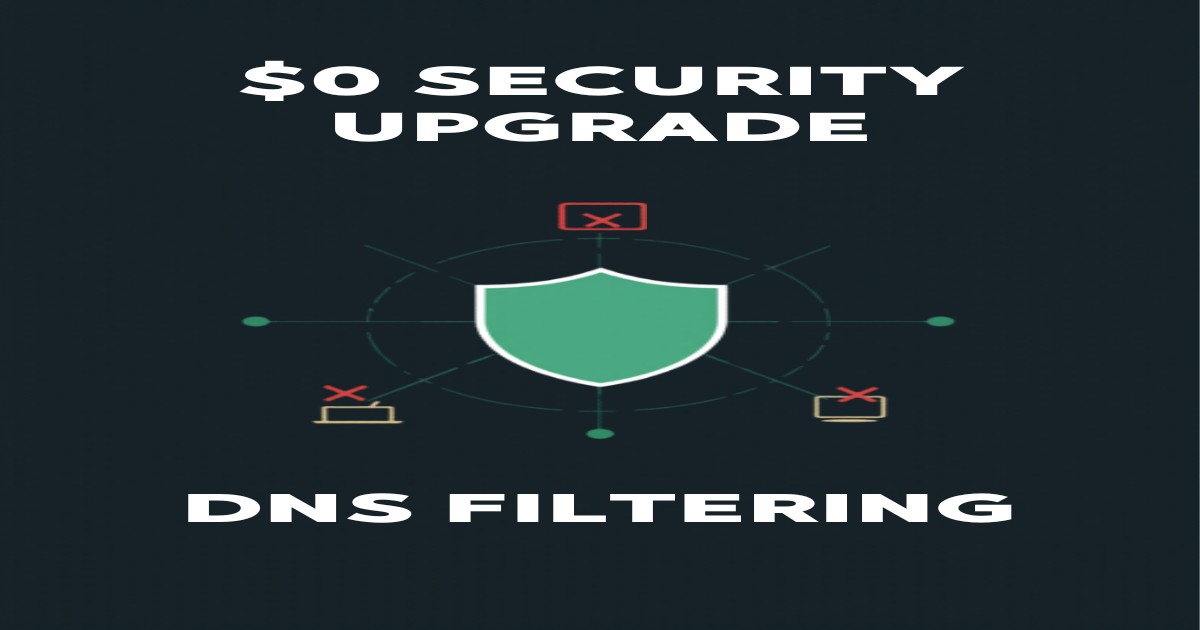
A DNS filter is a smarter phone book. When your device asks “where is definitely-not-a-virus.com?” the DNS filter checks its list. If that domain is known to host malware, phishing scams, or other garbage — it simply refuses to answer.
The website never loads. The malware never downloads. The phishing page never appears.
Your device never even connects to the bad server. It’s blocked before the first packet of data is sent.
This is fundamentally different from antivirus, which waits until something bad is already on your device and then tries to catch it. DNS filtering stops the connection from happening in the first place.
Why this matters more than you think
Here’s what a good DNS filter blocks:
- Malware domains — sites that try to download viruses, ransomware, or trojans onto your device
- Phishing sites — fake login pages for your bank, email, or Amazon that steal your password
- Command-and-control servers — if malware does get on a device, it needs to “phone home” to the attacker. DNS filtering blocks that call.
- Cryptojacking sites — pages that hijack your computer’s processing power to mine cryptocurrency
- Newly registered domains — most malicious domains are less than 30 days old. Some DNS filters block brand-new domains by default.
- Ad-tracking and telemetry — depending on the service, you can also block aggressive ad trackers
And it does all of this on every device connected to your network — including devices where you can’t install antivirus, like smart TVs, IoT cameras, game consoles, and smart speakers.
The two best free options
Option 1: Quad9 (simplest — 2 minutes)
Quad9 is a nonprofit DNS service run by a partnership between IBM, Packet Clearing House, and the Global Cyber Alliance. It blocks known malicious domains using threat intelligence from 25+ security sources.
Setup:
- Open your router’s admin page (usually
192.168.1.1or192.168.0.1in your browser) - Find the DNS settings (usually under “Internet” or “WAN” or “Network”)
- Change the DNS servers to:
- Primary: 9.9.9.9
- Secondary: 149.112.112.112
- Save and reboot your router
That’s it. Every device on your home network is now protected.
If you can’t access your router, you can change DNS on individual devices:
- Windows: Settings → Network & Internet → Change adapter options → Properties → IPv4 → Use these DNS servers: 9.9.9.9
- Mac: System Preferences → Network → Advanced → DNS → Add 9.9.9.9
- iPhone: Settings → Wi-Fi → tap the (i) next to your network → Configure DNS → Manual → Add 9.9.9.9
- Android: Settings → Network → Private DNS →
dns.quad9.net
Option 2: NextDNS (more control — 5 minutes)
NextDNS gives you everything Quad9 does plus a dashboard where you can:
- See exactly what’s being blocked and why
- Add custom block/allow lists
- Block specific categories (gambling, social media, adult content — great for families)
- Set different rules for different devices
- View analytics on your network traffic
The free tier gives you 300,000 queries per month, which is enough for most households.
Setup:
- Go to nextdns.io and create a free account
- You’ll get custom DNS addresses (like
abc123.dns.nextdns.io) - Set those as your DNS servers on your router (same process as Quad9 above)
- Or install the NextDNS app on each device for per-device control
What about Cloudflare (1.1.1.1)?
Cloudflare’s 1.1.1.1 is fast and private, but the basic version does not block malware. It’s a privacy-focused DNS, not a security-focused one. They do offer a malware-blocking version at 1.1.1.2 — but Quad9 and NextDNS have more comprehensive threat intelligence.
“But I already have antivirus”
Good. Keep it. DNS filtering doesn’t replace antivirus — it adds a layer that antivirus can’t provide.
Think of it this way:
- DNS filtering = the bouncer at the door. Stops known troublemakers from getting in.
- Antivirus = the security camera inside. Catches anything that slips past the bouncer.
- Neither alone is enough. Together, they cover each other’s blind spots.
The real advantage of DNS filtering is that it protects devices where you can’t install antivirus. Your printer. Your Roku. Your Ring doorbell. Your kid’s Chromebook. All of those connect to the internet, all of them can be exploited, and none of them run Norton.
The business case
If you run a small business, DNS filtering is even more critical.
A single employee clicking a phishing link can expose your entire network. DNS filtering blocks that phishing site before the page even renders. The employee sees a “blocked” page instead of a fake Microsoft login.
At DarkHorse IT, we configure DNS filtering as part of every managed network we set up. It’s one of the first things we do — because it’s one of the highest-impact, lowest-cost security measures available.
Do this right now
Seriously. Before you close this tab:
- Open your router admin page
- Change DNS to 9.9.9.9 and 149.112.112.112
- Save
- Reboot your router
Two minutes. Zero dollars. Every device in your house is now significantly safer.
If you want help setting this up — or if you want to know what else your network might be missing — give us a call at (701) 660-0909. We do network security assessments for Fargo-Moorhead businesses. The first conversation is always free.
Have a tech question? Catch DarkHorse IT live on KFGO 790 AM every Thursday at 7:40 AM, or visit darkhorseit.com.